

A Beginner's Guide to Using Visual Studio Code

If you’re just starting your programming journey, one of the first tools you’ll hear about is Visual Studio Code (VS Code). Whether you’re learning Python, JavaScript, HTML, CSS, or any other programming language, VS Code has become the go-to code editor for millions of developers around the world.
The best part? It’s completely free, lightweight, and packed with features that help beginners learn faster while offering enough power for professional developers.
What Is Visual Studio Code?
Visual Studio Code is a free source code editor developed by Microsoft. Unlike a full-fledged Integrated Development Environment (IDE), VS Code is designed to be lightweight while allowing users to add features through extensions.
It supports hundreds of programming languages and works on Windows, macOS, and Linux.
Installing Visual Studio Code
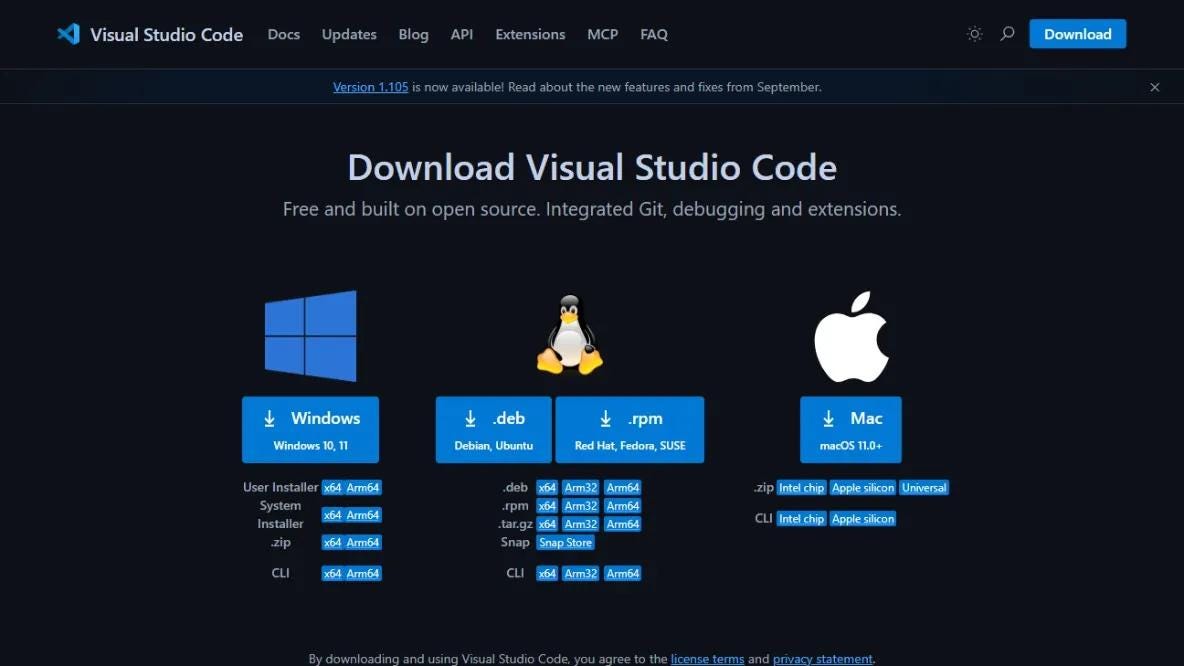
Getting started only takes a few minutes:
Download VS Code from the official website.
Run the installer.
Enable options like Add to PATH and Open with Code.
Launch VS Code.
Understanding the VS Code Interface
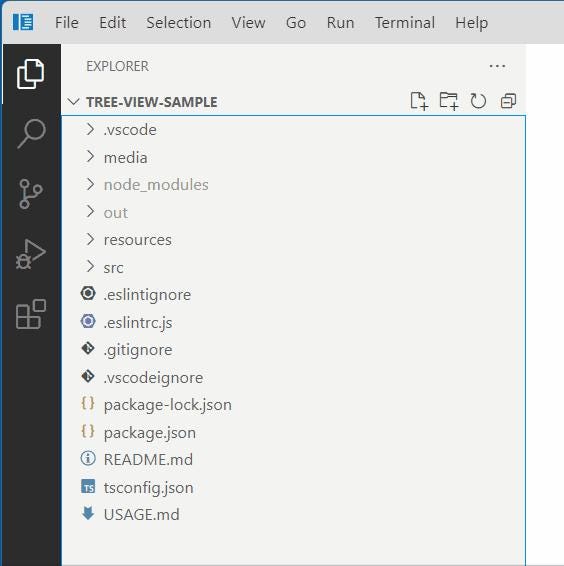
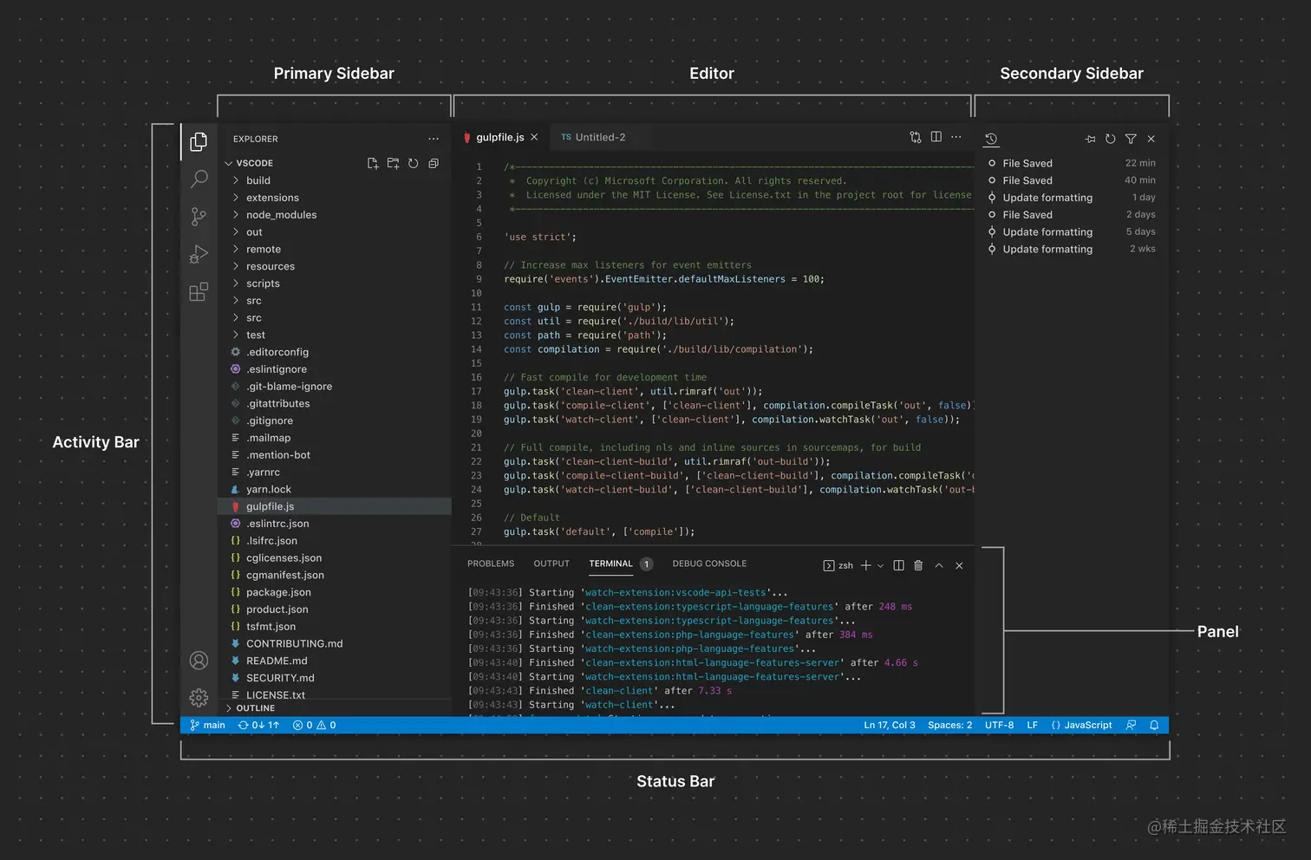
The main parts of the interface include:
Activity Bar – Navigate between Explorer, Search, Git, Debug, and Extensions.
Explorer – Displays your project files and folders.
Editor – Where you write your code.
Status Bar – Shows useful information like language mode, line number, and Git branch.
Creating Your First Project
Create a new folder, open it in VS Code, then create a file such as index.html.
This becomes the workspace where you’ll organize your project files.
Writing Your First Code
<!DOCTYPE html>
<html>
<head>
     <title>Hello VS Code</title>
</head>
<body>
     <h1>Hello World!</h1>
</body>
</html>
Save the file and open it in your browser to see your first webpage.
Using IntelliSense
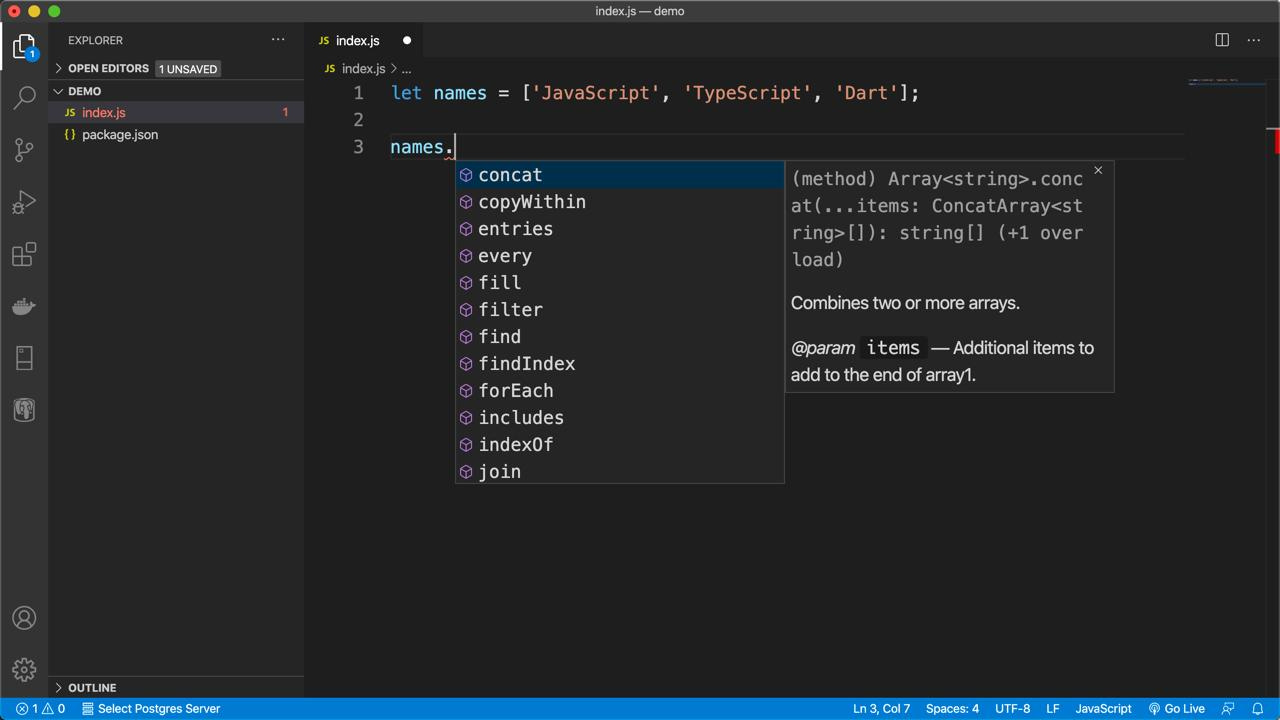
IntelliSense automatically suggests:
Variables
Functions
HTML tags
CSS properties
JavaScript methods
It helps reduce errors and speeds up coding.
Installing Useful Extensions
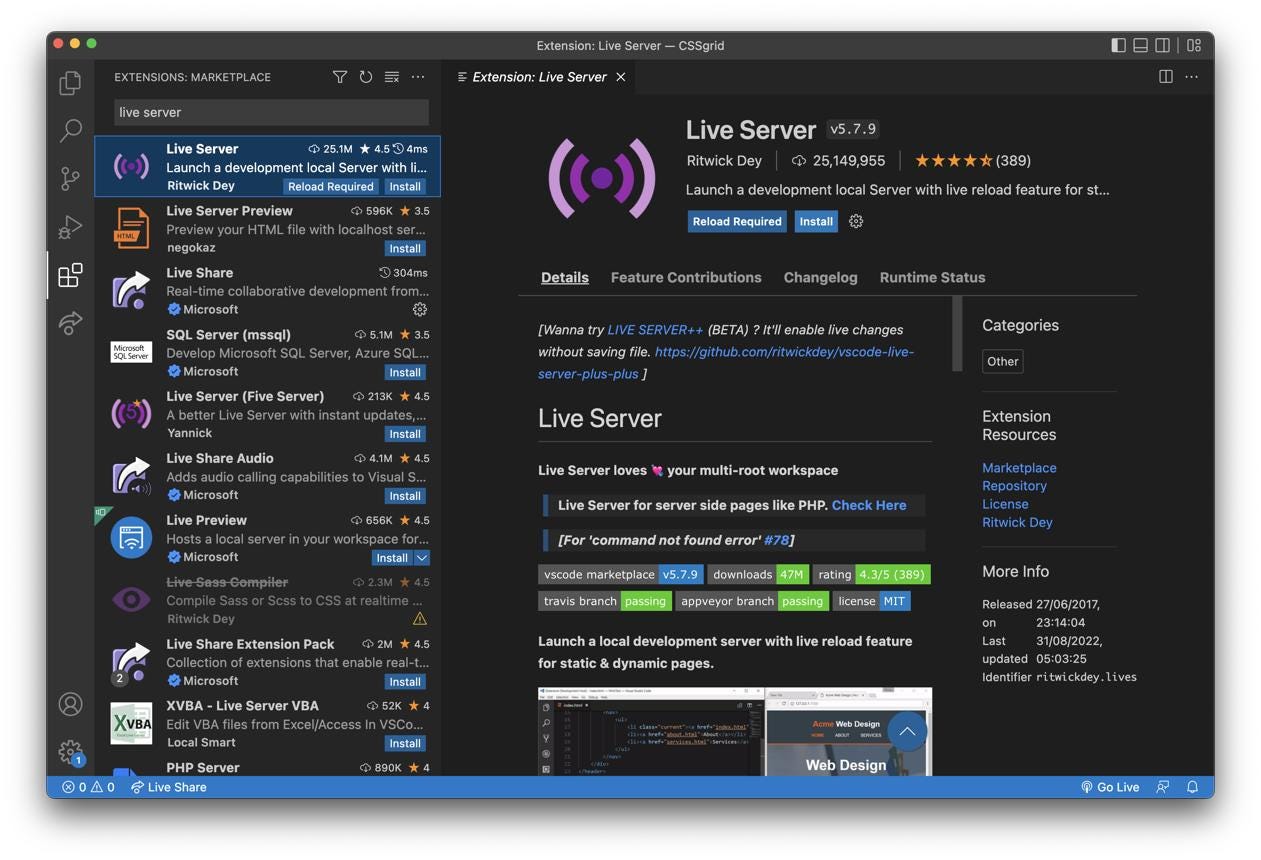
Some beginner-friendly extensions include:
Live Server – Instantly preview websites.
Prettier – Automatically formats your code.
Python – Adds Python support.
ESLint – Detects JavaScript issues.
Using the Integrated Terminal
Open the terminal from Terminal → New Terminal.
You can run commands like:
python app.pyor
npm installwithout leaving the editor.
Working with Multiple Files
Organize your projects like this:
My Project
│
├── index.html
├── style.css
├── script.js
├── assets/
└── images/
The Explorer makes navigating large projects easy.
Customizing VS Code
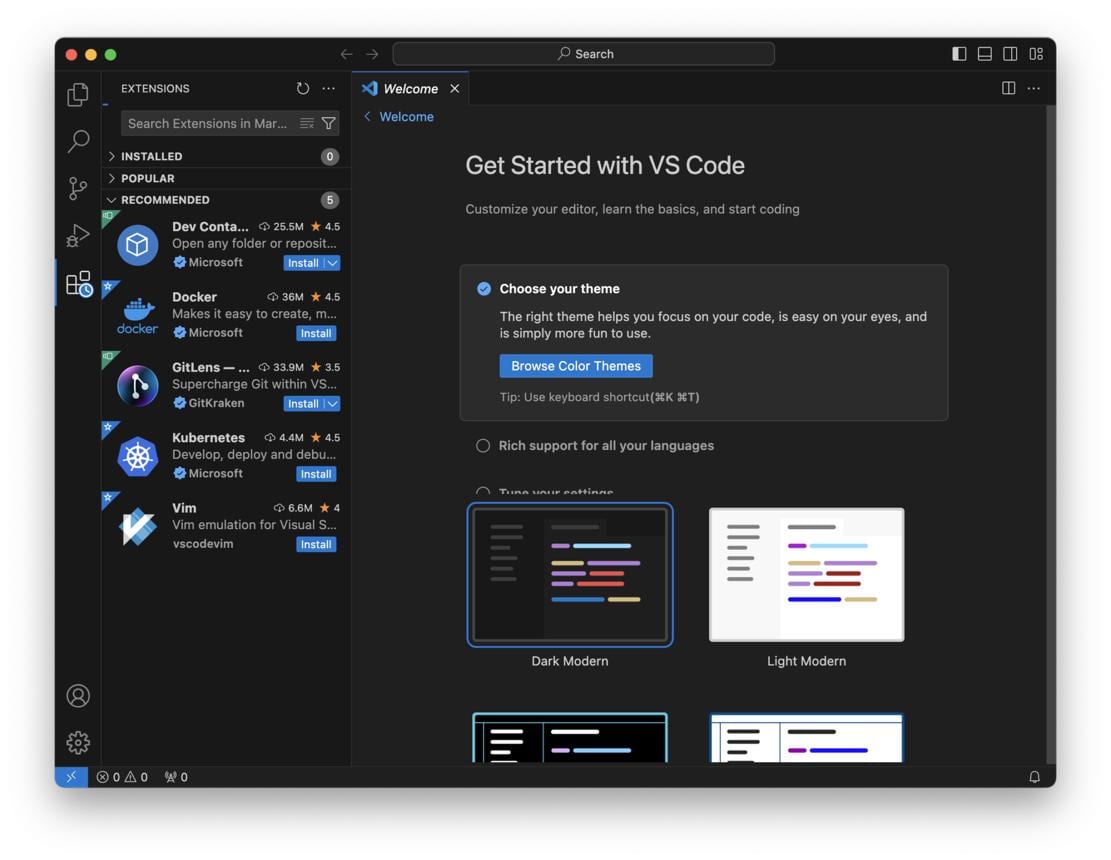
You can personalize:
Themes
Icons
Fonts
Keyboard shortcuts
Layout
Color schemes
Choose settings that make coding comfortable.
Built-in Git Support
VS Code includes Git integration that allows you to:
Track file changes
Commit updates
Compare versions
Push code to GitHub
Learning Git early is a valuable skill for every developer.
Debugging Your Code
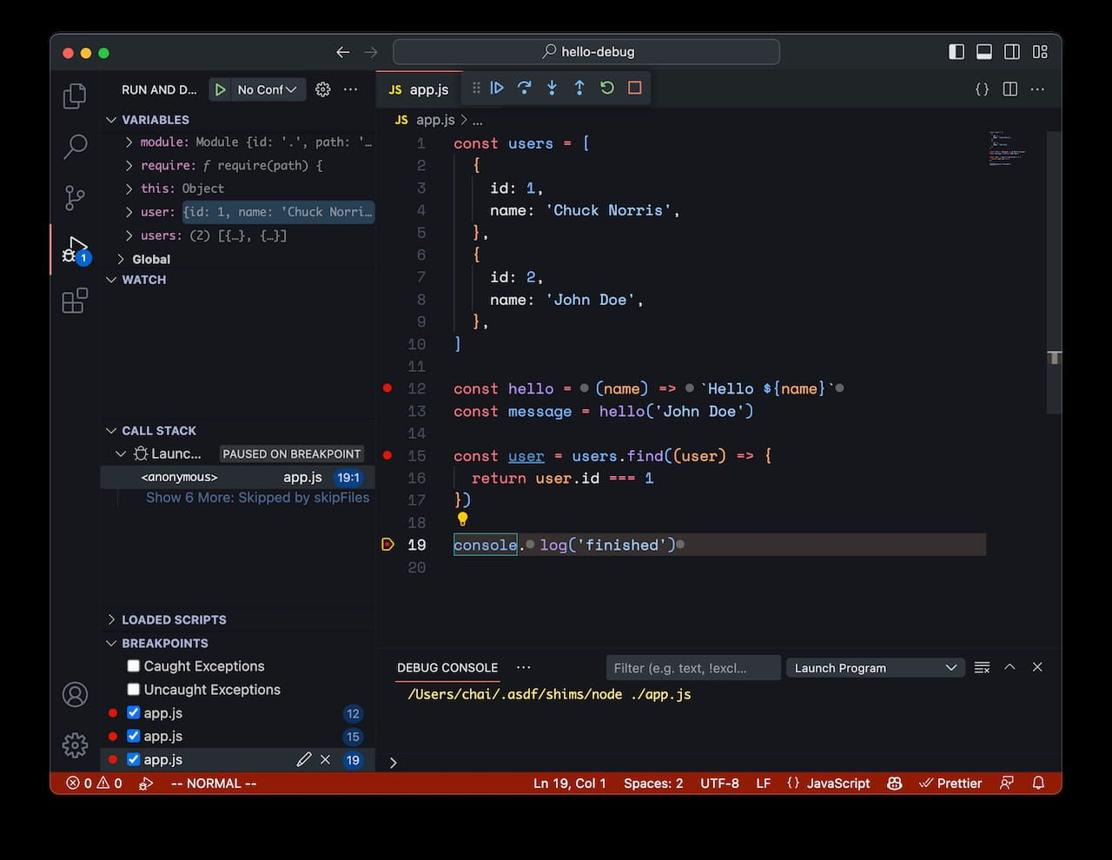
The built-in debugger lets you:
Set breakpoints
Inspect variables
Step through your code
Find bugs faster
Common Beginner Mistakes
Avoid these common pitfalls:
Forgetting to save files
Installing too many extensions
Opening single files instead of project folders
Ignoring error messages
Not learning keyboard shortcuts
Final Thoughts
Visual Studio Code is one of the best editors for beginners because it combines simplicity with powerful features. Start with the basics, build small projects, and gradually explore extensions, Git integration, and debugging tools. With regular practice, VS Code will become an essential part of your development workflow and help you write cleaner, more efficient code.